
















How to Use Copilot Across Outlook and Word

Tia Kilby
M365 and Copilot trainer
See how Copilot can help work flow from prompts to emails, documents and Teams conversations. Learn to give better instructions, iterate on outputs and turn conversations into clear next steps.

See how Copilot can help work flow from prompts to emails, documents and Teams conversations. Learn to give better instructions, iterate on outputs and turn conversations into clear next steps.
Subscribe to watch
Access this and all of the content on our platform by signing up for a 7-day free trial.
How to Use Copilot Across Outlook and Word
6 mins 58 secs
Key learning objectives:
Apply the GCES framework to create clearer, more context-rich Copilot prompts
Use iterative follow-ups to refine Copilot outputs rather than repeatedly starting from scratch
Learn how to use copilot effectively across word and outlook
Move work effectively between conversations, emails and documents while maintaining human oversight
Overview:
The GCES (Goal, Context, Expectation and Source) framework provides a practical structure for giving Copilot what it needs. Across email, documents and Teams, the aim is to move work forward: capture what was discussed, distinguish decisions from actions, shape the output for its audience and keep improving it until it is genuinely useful.
Subscribe to watch
Access this and all of the content on our platform by signing up for a 7-day free trial.
Copilot performs better when it understands what you are trying to achieve and the circumstances around the task. The GCES framework—Goal, Context, Expectation and Source—helps turn a vague request into a useful instruction.
The Goal explains what you want Copilot to do; Context gives it the relevant background; Expectation defines how you want the result shaped; and Source identifies material it should use. Together, they provide a clearer brief for the Digital Assistant.
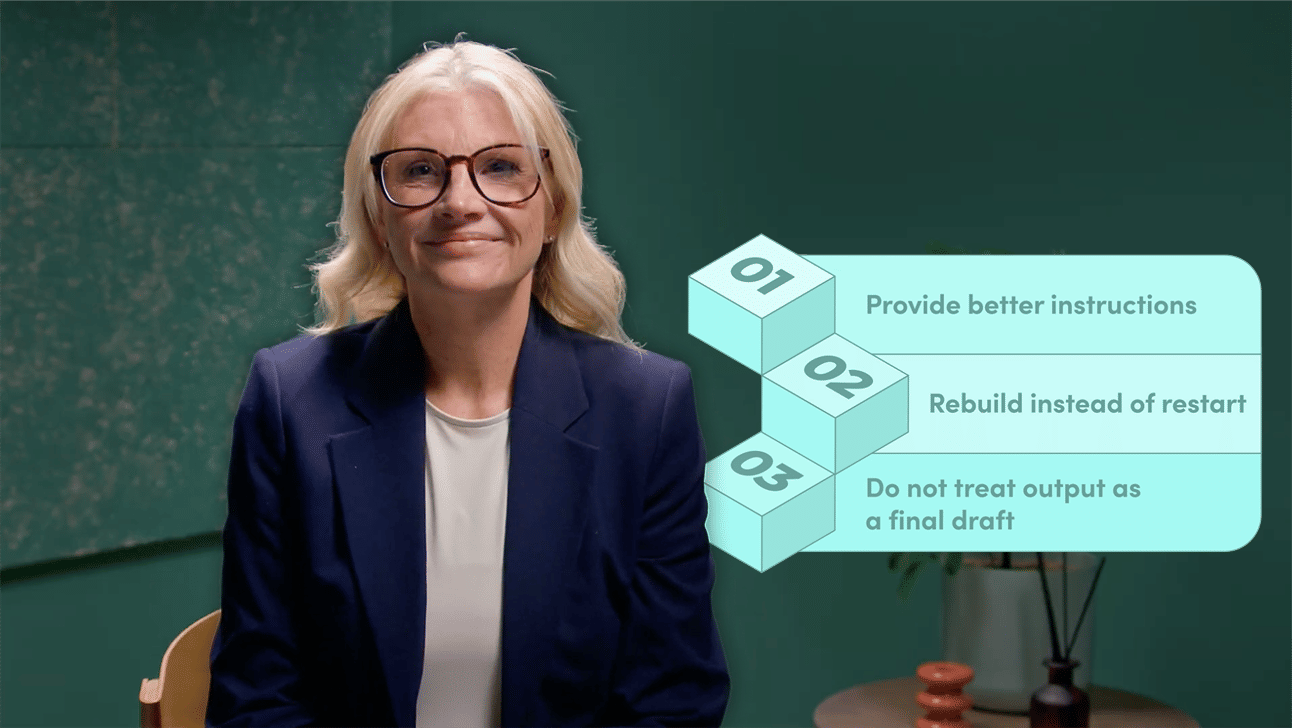
Don't automatically start again. Follow up with instructions such as making the output shorter, changing the tone, adding a missing point or adapting it for a particular audience. Iteration turns Copilot into a working conversation rather than a one-shot tool.
It can summarise an email thread, identify the action required and draft a response. In Word, it can create an outline, structure content or reshape an existing section for a different reader—helping work move naturally from one stage to the next.
Copilot can recap meetings and conversations and help separate decisions, discussions and actions. Those outputs can then become the basis for a follow-up email or document, reducing the need to recreate information manually.
Can you simply accept Copilot's interpretation of a conversation?
No. The user must confirm that decisions, actions and the surrounding context have been captured correctly. Copilot can help move work forward, but the human remains responsible for deciding what was actually agreed and what should happen next.
Subscribe to watch
Access this and all of the content on our platform by signing up for a 7-day free trial.

Tia Kilby
There are no available Videos from "Tia Kilby"